Sales Order
Sales Order
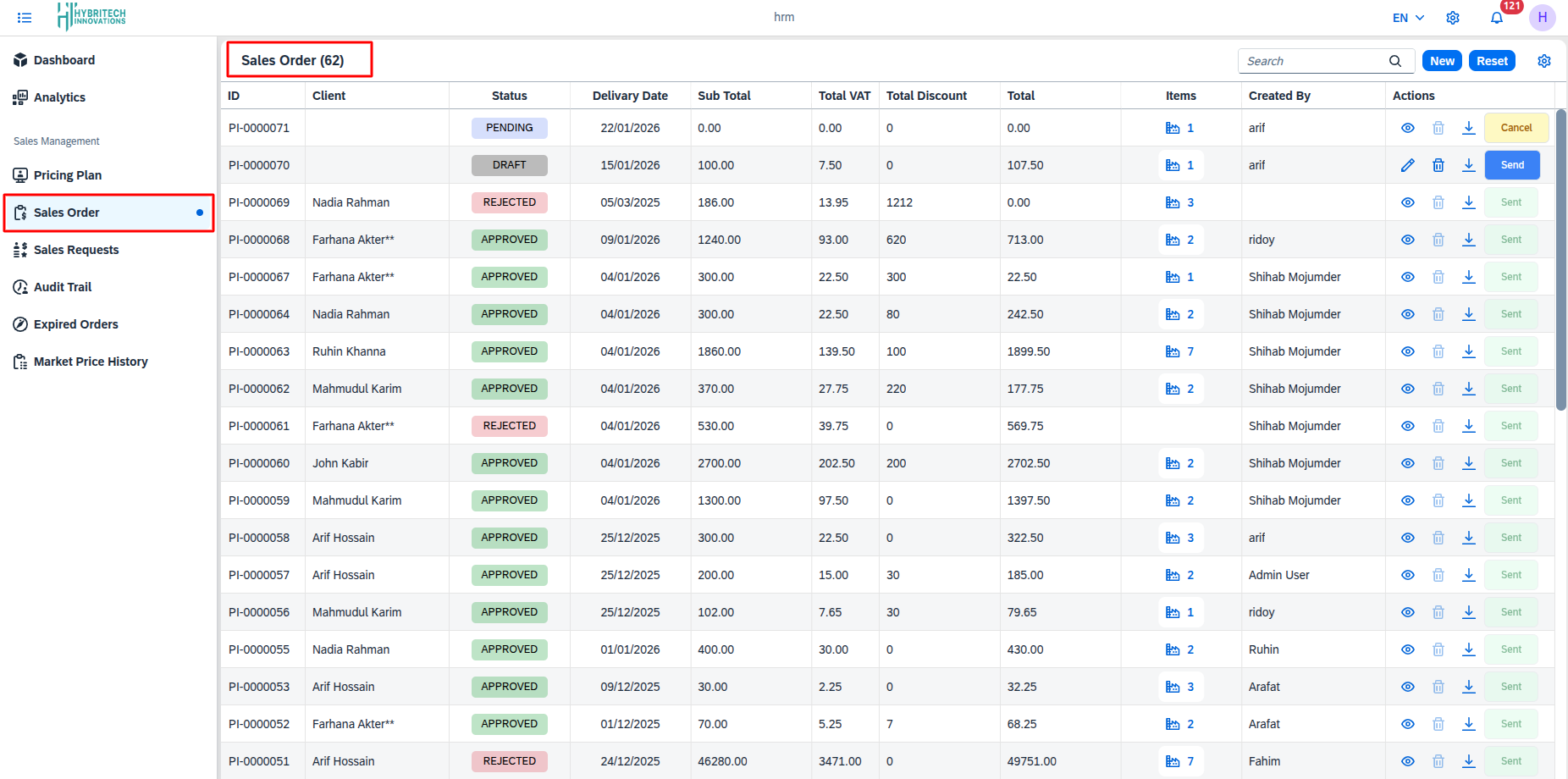
The Sales Order page is designed for managing customer orders from creation to final approval or rejection. It provides a clear view of all transactions and their current status.
Creating a New Sales Order
The Sales Orders table offers a comprehensive interface for managing customer sales orders within the system. Accessible via Sales and Marketing > Sales Order, it displays a detailed table listing all sales orders with key information including order ID, client name, status (such as Draft, Approved, or Rejected), delivery date, sub total, total VAT, total discount, final total amount, number of items, and the user who created the order. Users can search for specific orders and create new ones using the New Button.
Each sales order row provides quick visual indicators through color-coded status labels and includes an Actions column with options to view details, edit, download, or send the order. While the order remains in Draft status, users can edit or delete it before submission. Once the order is sent to the Sales Request table, it can no longer be edited or deleted; only viewing is permitted via the eye icon. This ensures controlled progression through the sales workflow, from draft creation to final approval or rejection.
Add Associate
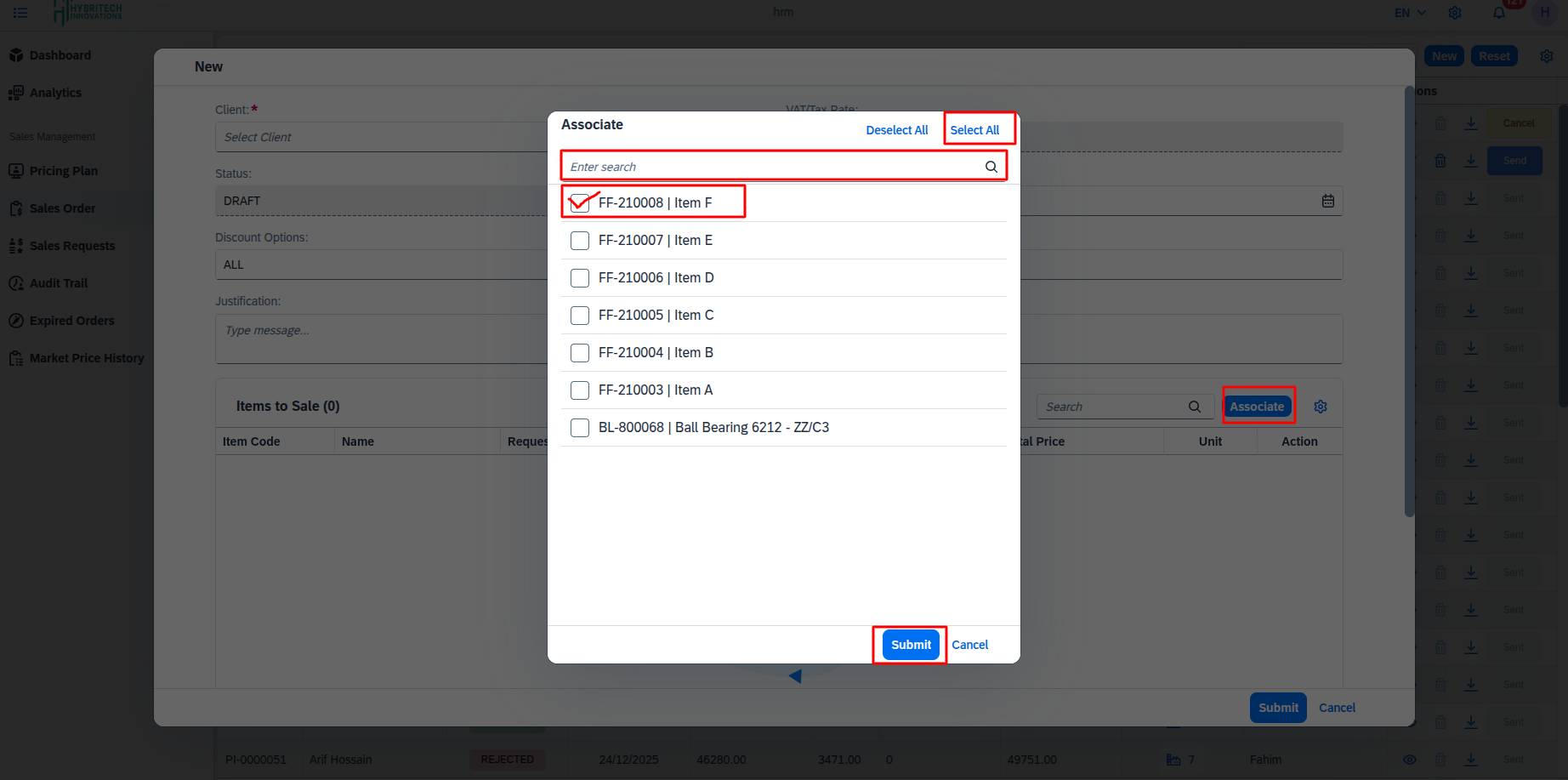
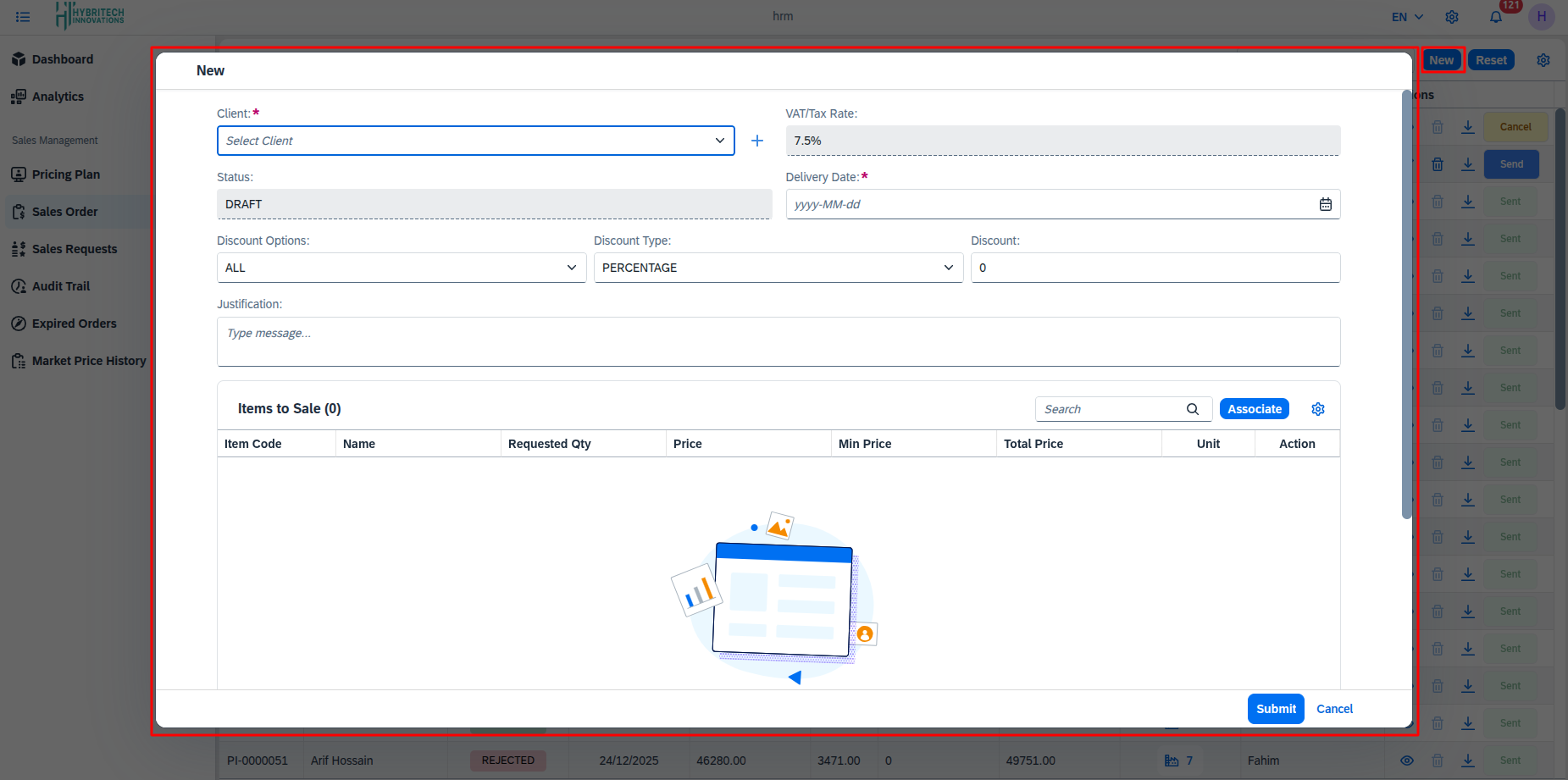
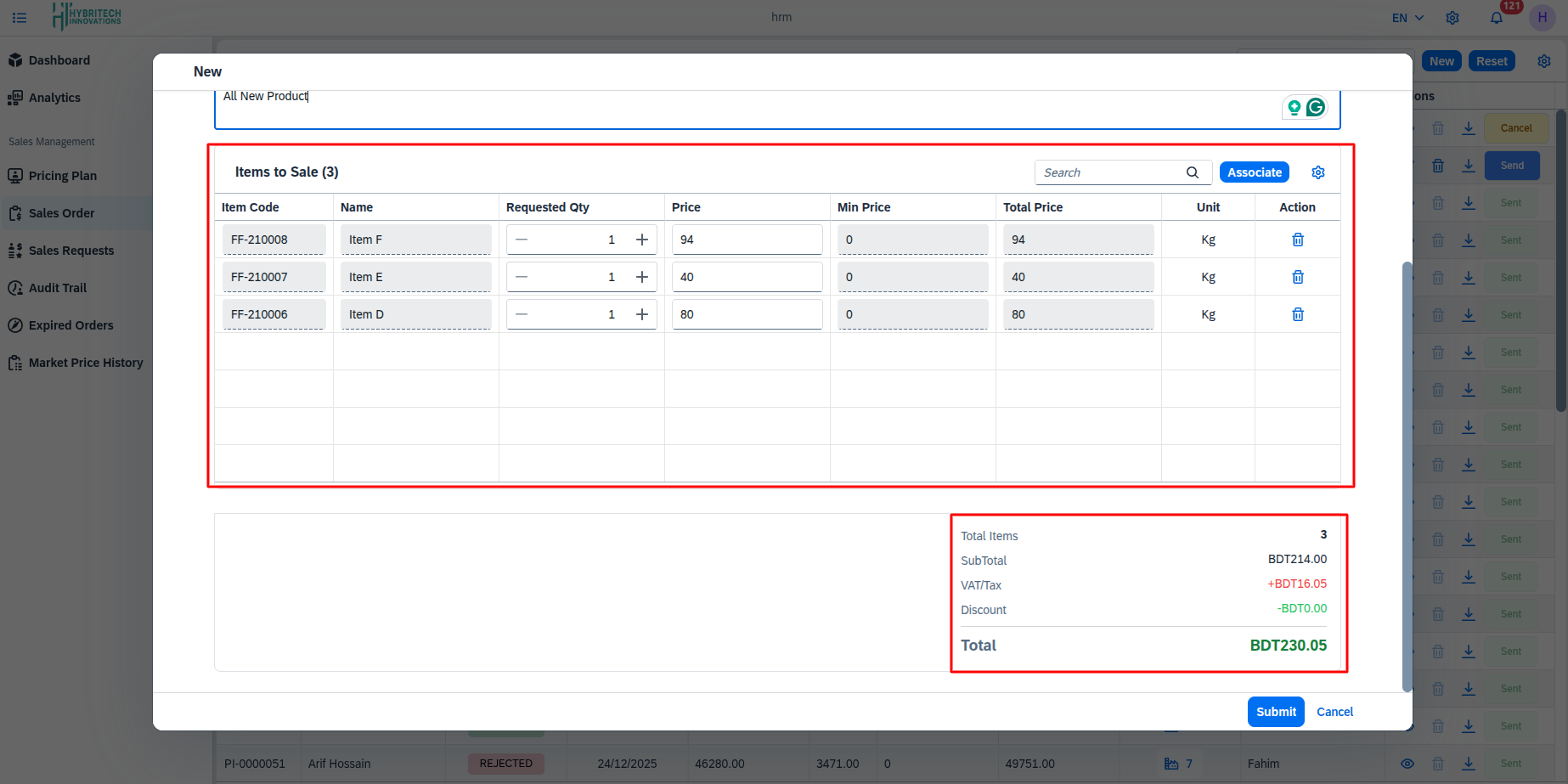
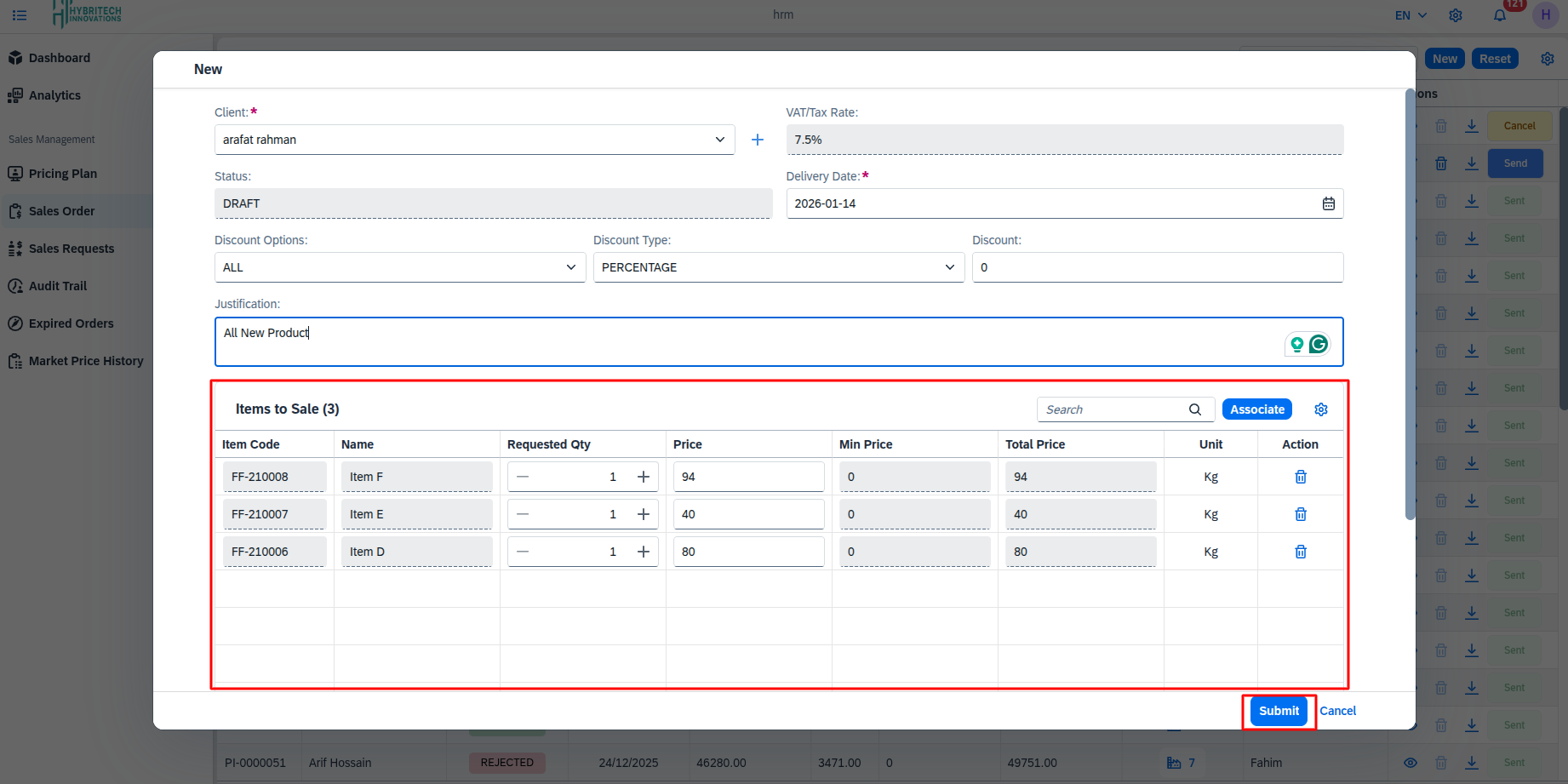
To create a new sales order, users can click the "New" button from the Sales Orders list, which opens a form. This form requires selection of a client, specification of a delivery date, and allows configuration of discount options (including discount type), as well as an optional justification note. The VAT/Tax rate is automatically applied based on system settings. The lower section of the new sales order form features a dedicated "Items to Sale" table designed for building the order contents. Initially empty, this table includes columns for item code, name, requested quantity, price, minimum price, total price, unit, action, discount, and discount type. Users add items by clicking the "Associate" button, which opens a search interface to select from available sellable items. Once associated, each item appears as a row in the table, allowing specification of the requested quantity and application of item-specific discounts (by fixed_amount or percentage) as needed. The system automatically calculates and displays the total price for each line item based on the current pricing plan, applied discounts, and quantity. Rows can be managed individually through action controls, ensuring precise order composition before final submission. This table-centric approach provides a clear, real-time overview of the order lineup and financial implications.
Add Items
Add Items List & Total Item Amount
Actions
Managing Orders
- Create New Order: Click the New button (top right) to start a new sales order form.
- View Details: Click the Eye icon to see full details of an order.
- Send/Process: Use the Plane/Arrow icon to move the order to the next stage (e.g., submit for approval).
- Download: Click the Arrow Down icon to download order documents (PDF/Invoice).
- Delete: Use the Trash icon to remove draft orders.
Filtering & Customization
- Search: Find orders by ID or Client Name using the search bar.
- Column Visibility: Use the Gear/Settings icon to show or hide specific columns in the table.
Features
- Order Management: Create new orders and view existing ones.
- Status Tracking: Monitor orders through various stages like Draft, Approved, and Rejected.
- Financial Overview: See totals for VAT, discounts, and final amounts at a glance.