Item List
Documentation for Item List.
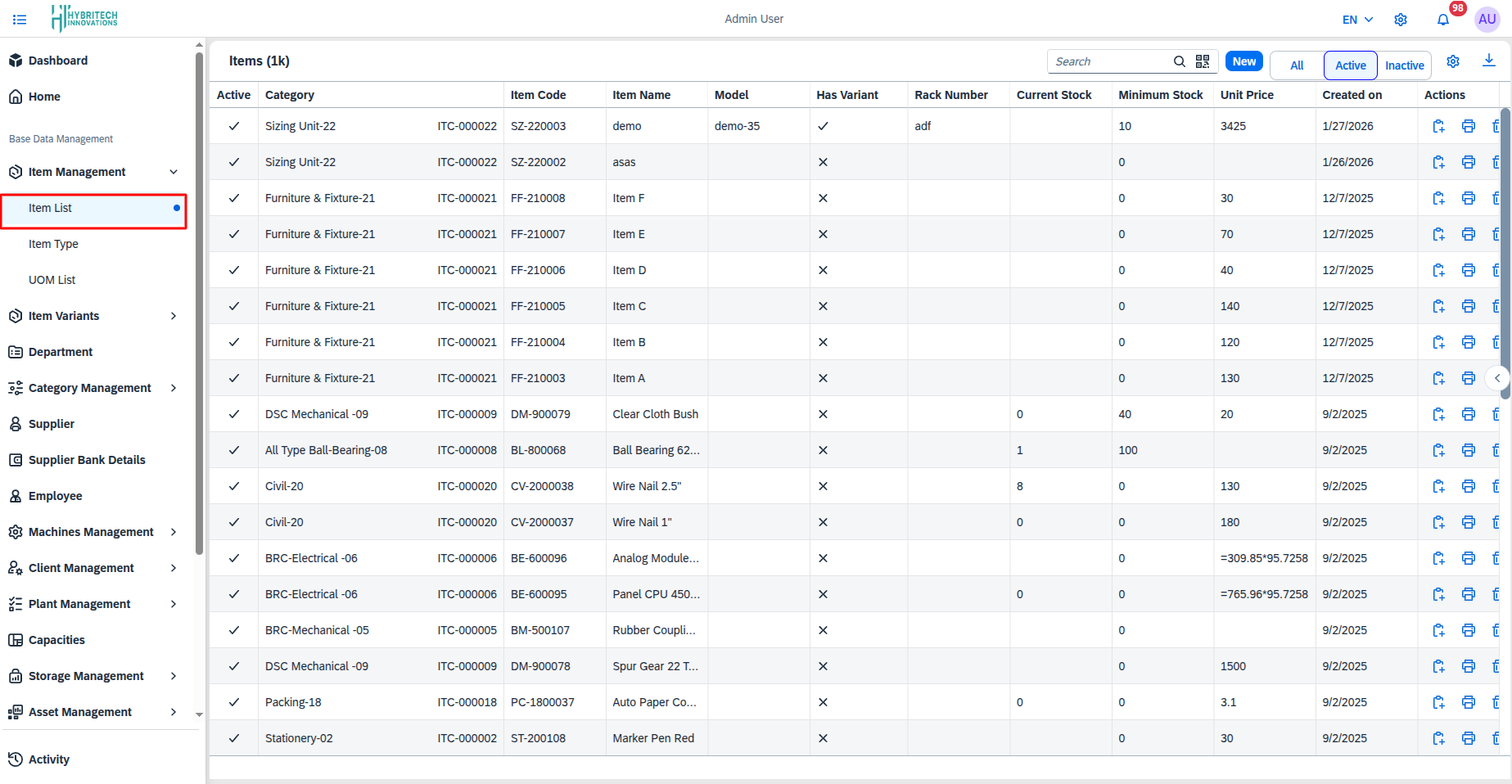
How it Works (Working Steps):
- List Display: A complete list of all items currently in the system is displayed here.
- Search and Filter: Use the search bar or filters at the top to quickly find a specific item.
- Action: Click the 'Add Item' button to create a new item, and use the action buttons on the right to view, edit, or delete an existing item.
Add Item
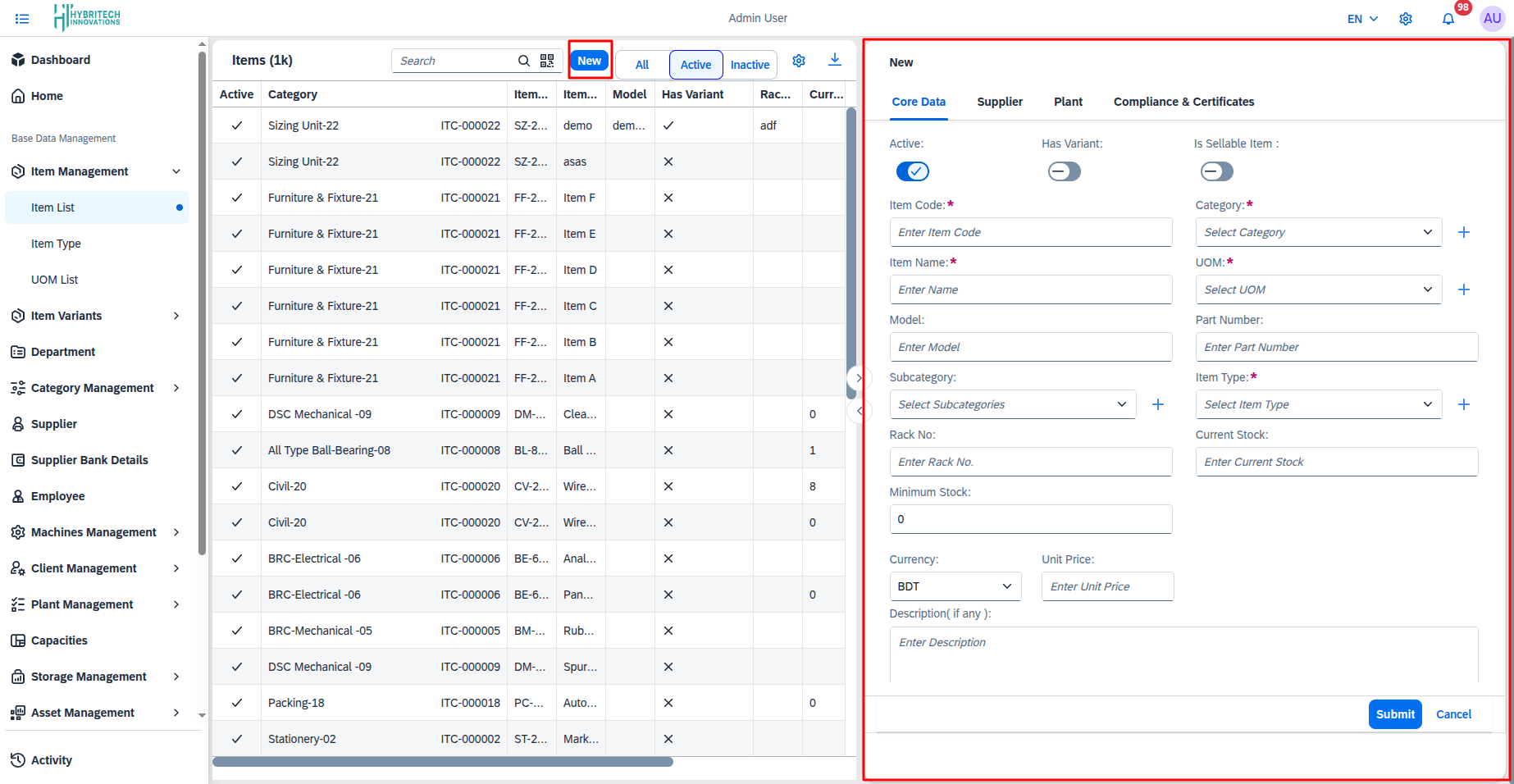
How it Works (Working Steps):
- Initial Data Entry: The master or core information of the item, such as Item Name, Item Code, Group/Category, and Unit (UoM), is entered on this page.
- Save: After correctly filling in the required fields, click the 'Save' or 'Next' button to store the information.
Add Supplier
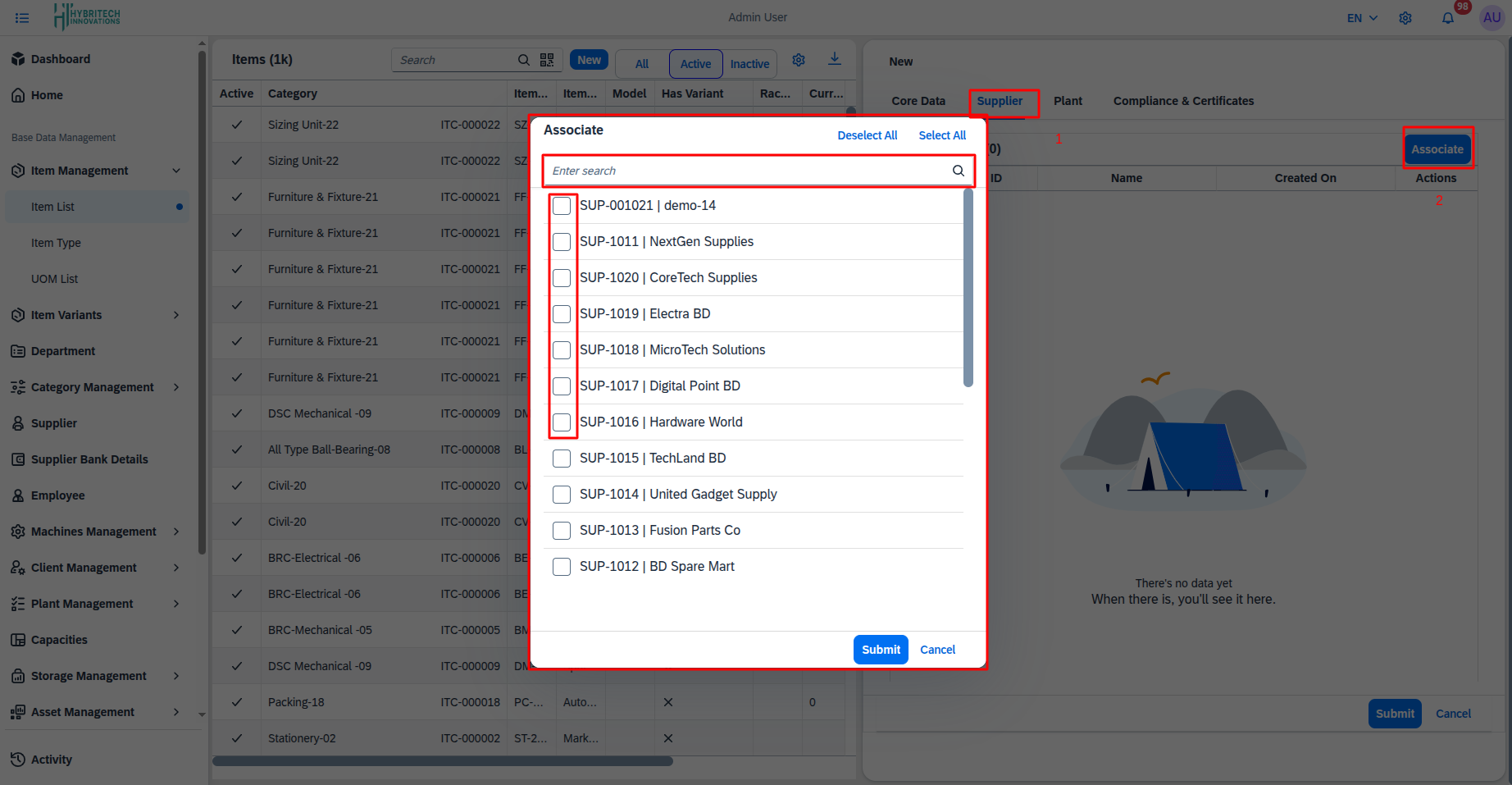
How it Works (Working Steps):
- Assign Supplier: Vendors or suppliers from whom this item will be sourced are added here.
- Add Data: Select the desired supplier from the dropdown list and click the 'Add' button to attach it to the item.
Add Plant
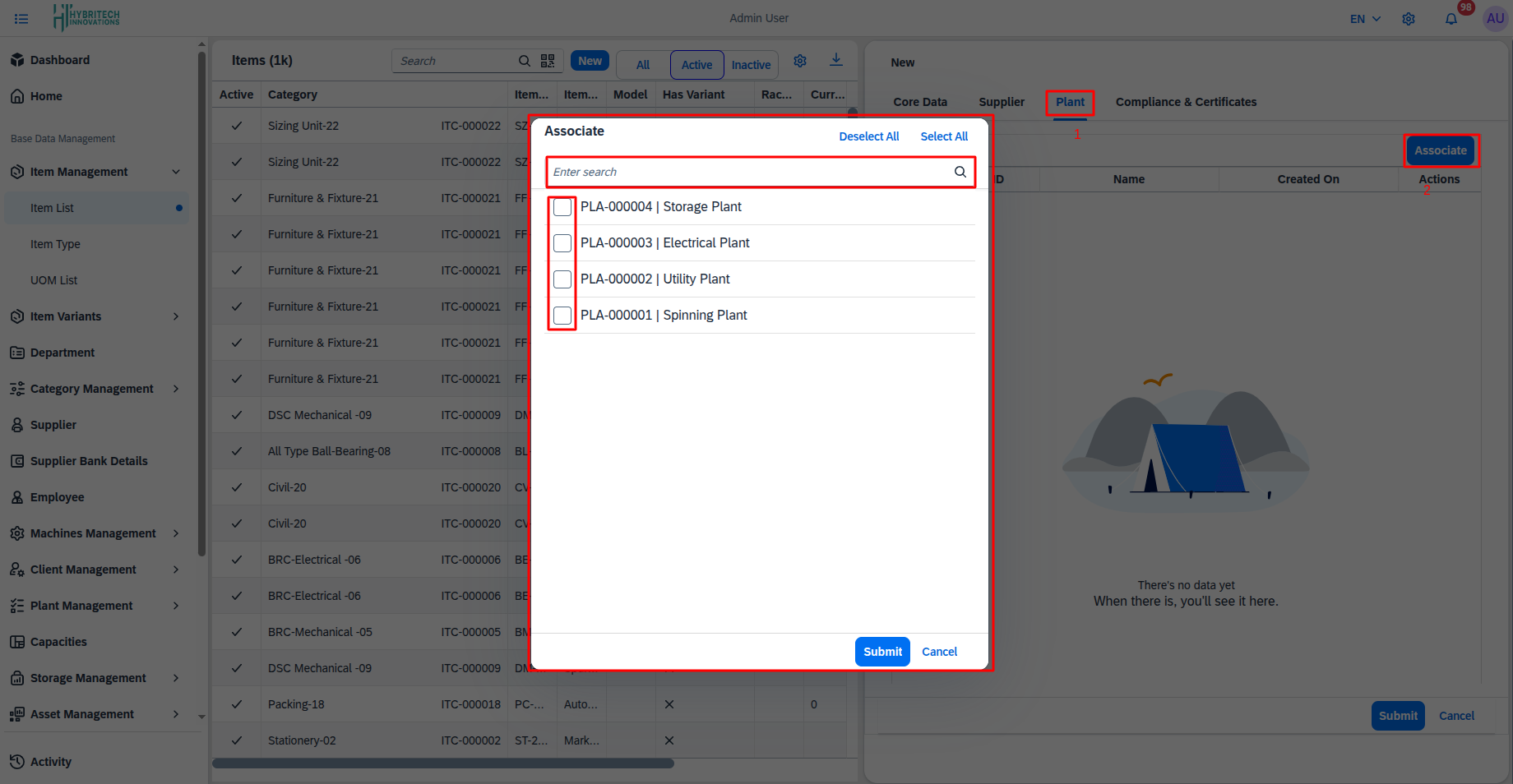
How it Works (Working Steps):
- Plant Selection: Specify which plant or factory the item is associated with.
- Assignment: Select a specific plant from the list to map it with the item.
Add Compliance
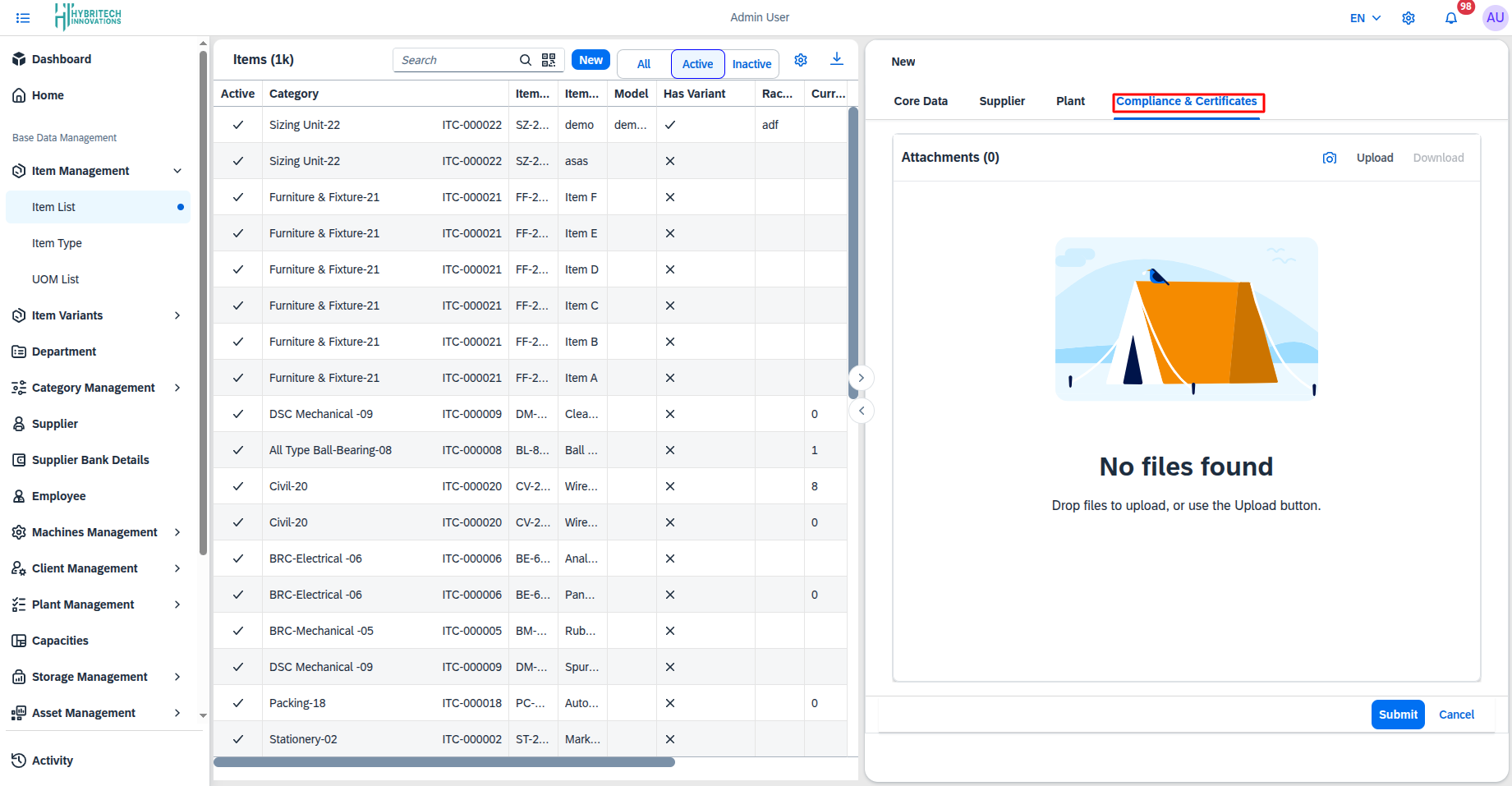
How it Works (Working Steps):
- Compliance Entry: Record any quality, health, or safety certifications or compliance related to the item here.
- Validation: The system can be updated with the compliance validity period and other related information.
Edit Item
Core Edit
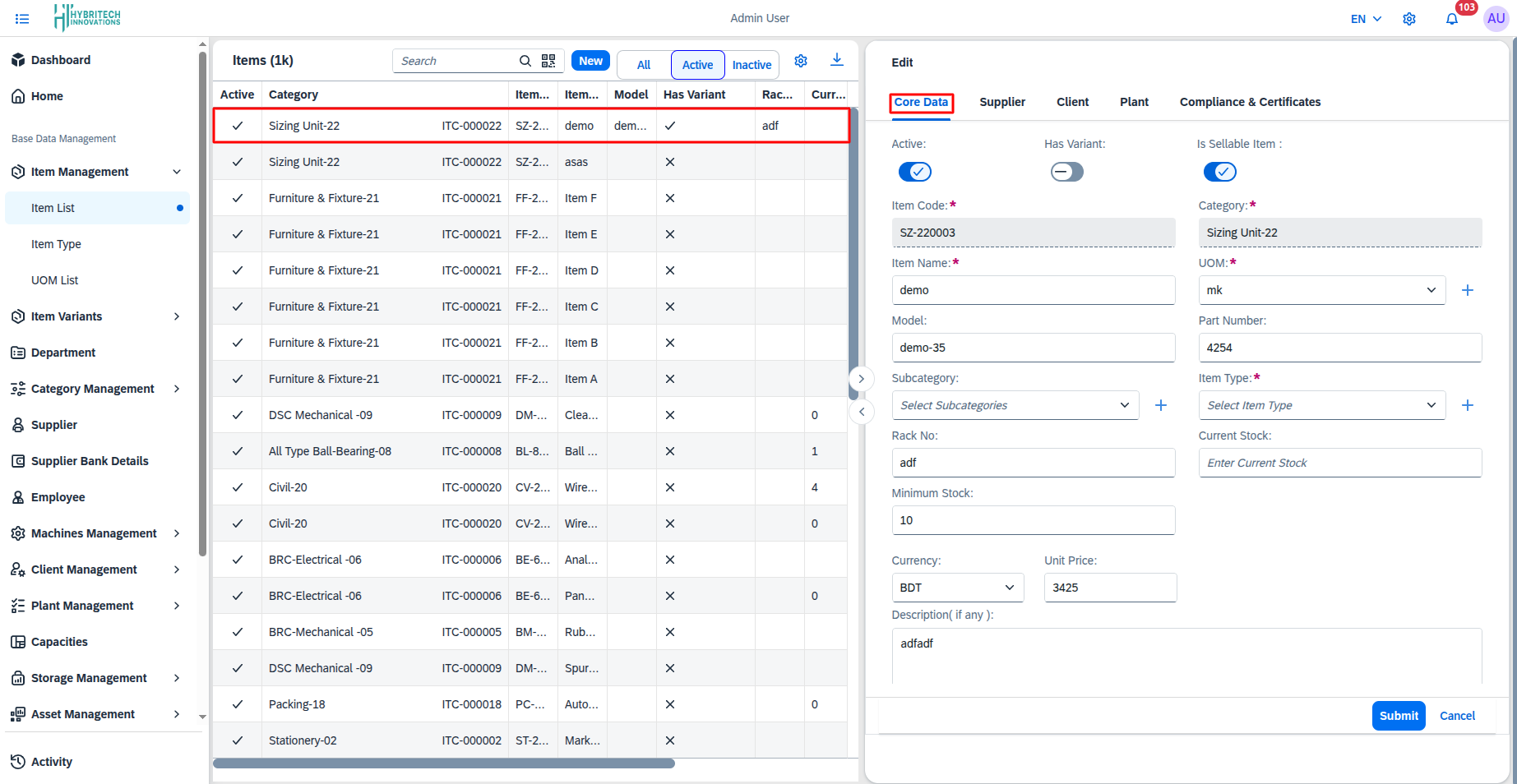
How it Works (Working Steps):
- Update Information: Use this section if you need to modify or update the previously entered core information (e.g., Item Name, Category).
- Save Changes: After providing the corrected information, 'Save' it to confirm the update.
Supplier Edit
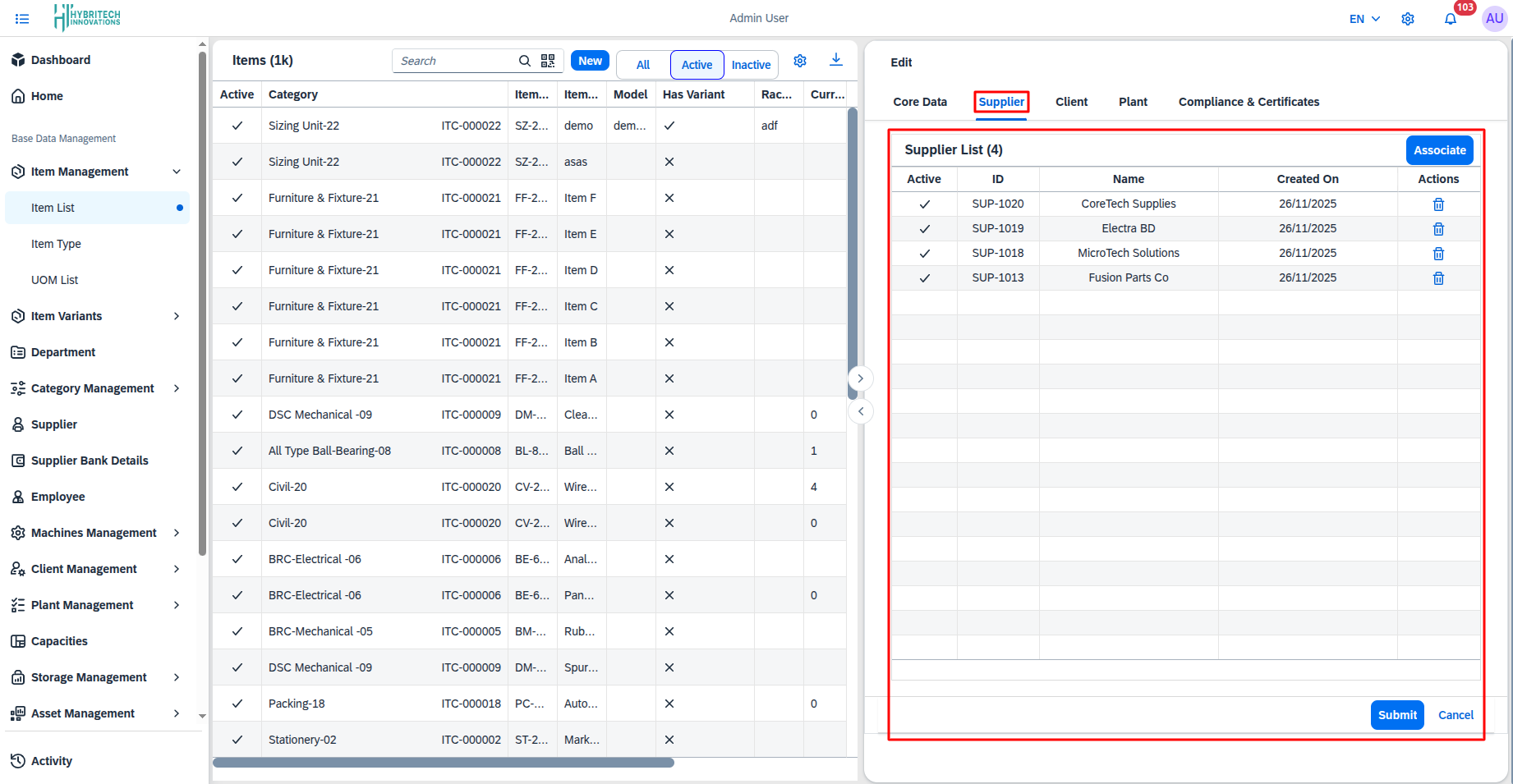
How it Works (Working Steps):
- Modify Supplier Information: This page is used to remove a supplier from the existing list or change their mapped data.
Supplier Add Edit
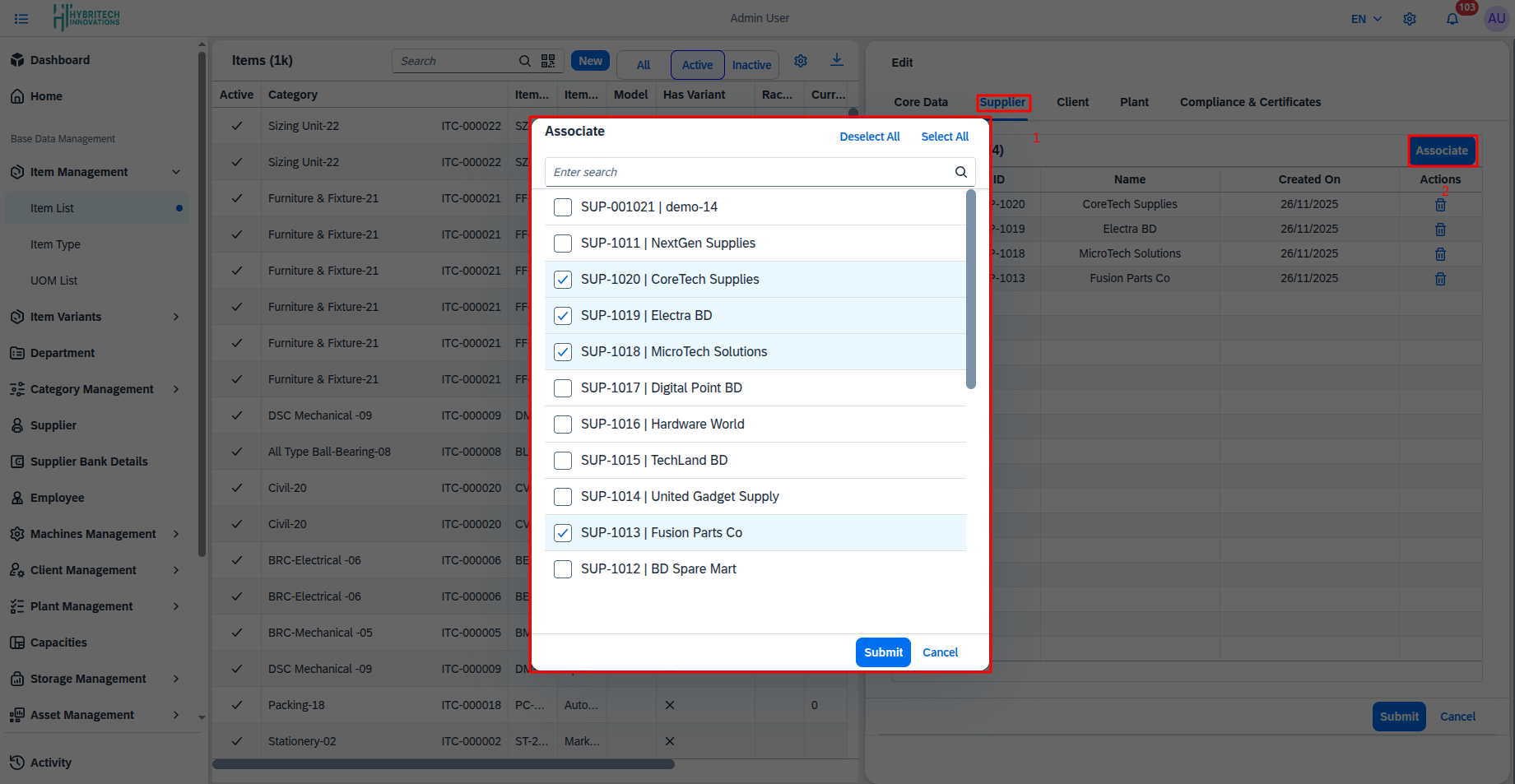
How it Works (Working Steps):
- Add New Supplier: This option lets you append a new supplier to the item while in edit mode.
Plant Edit
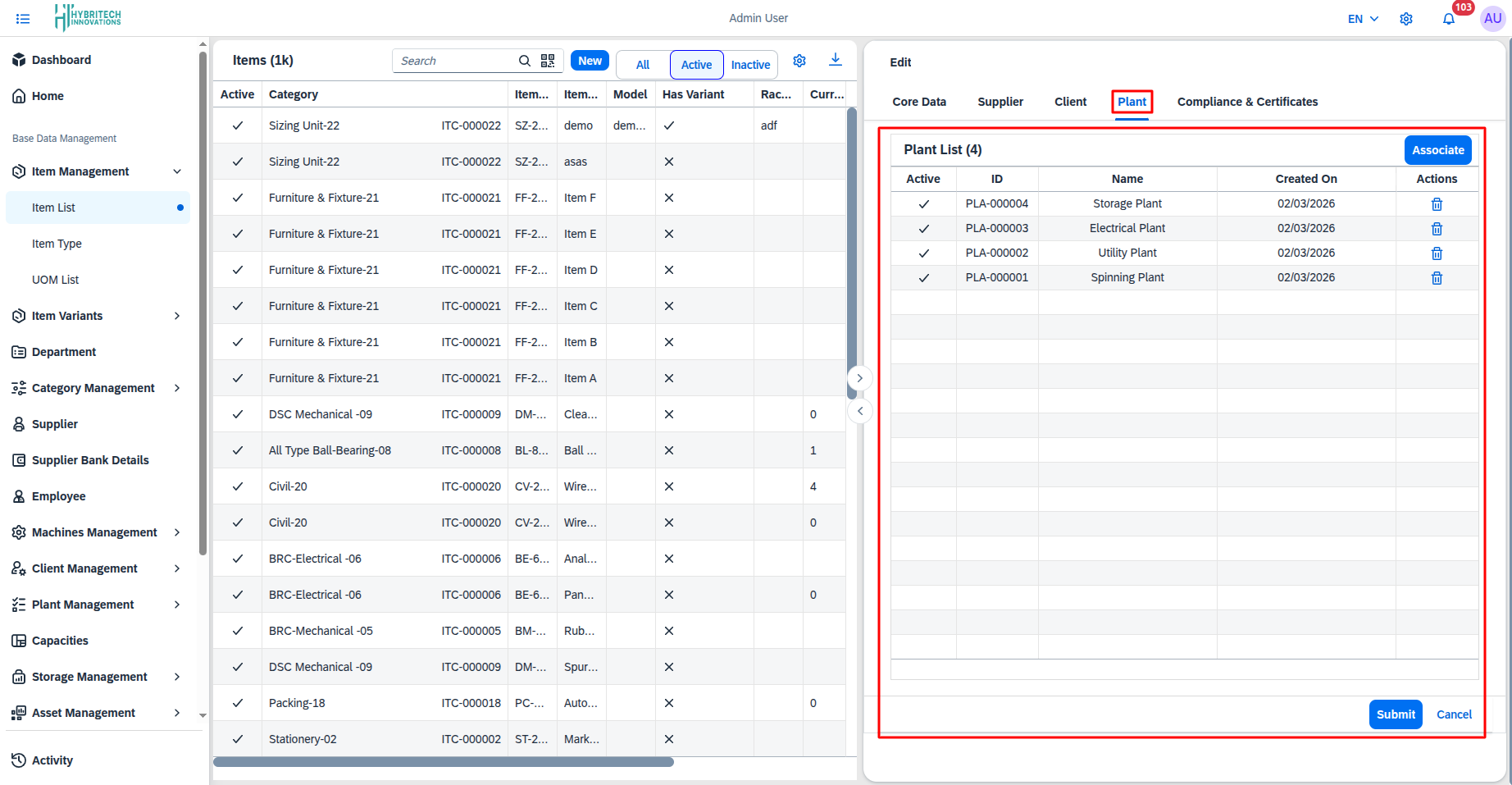
How it Works (Working Steps):
- Modify Plant Information: Used to change, correct, or delete items from the list of already added plants.
Plant Add Edit
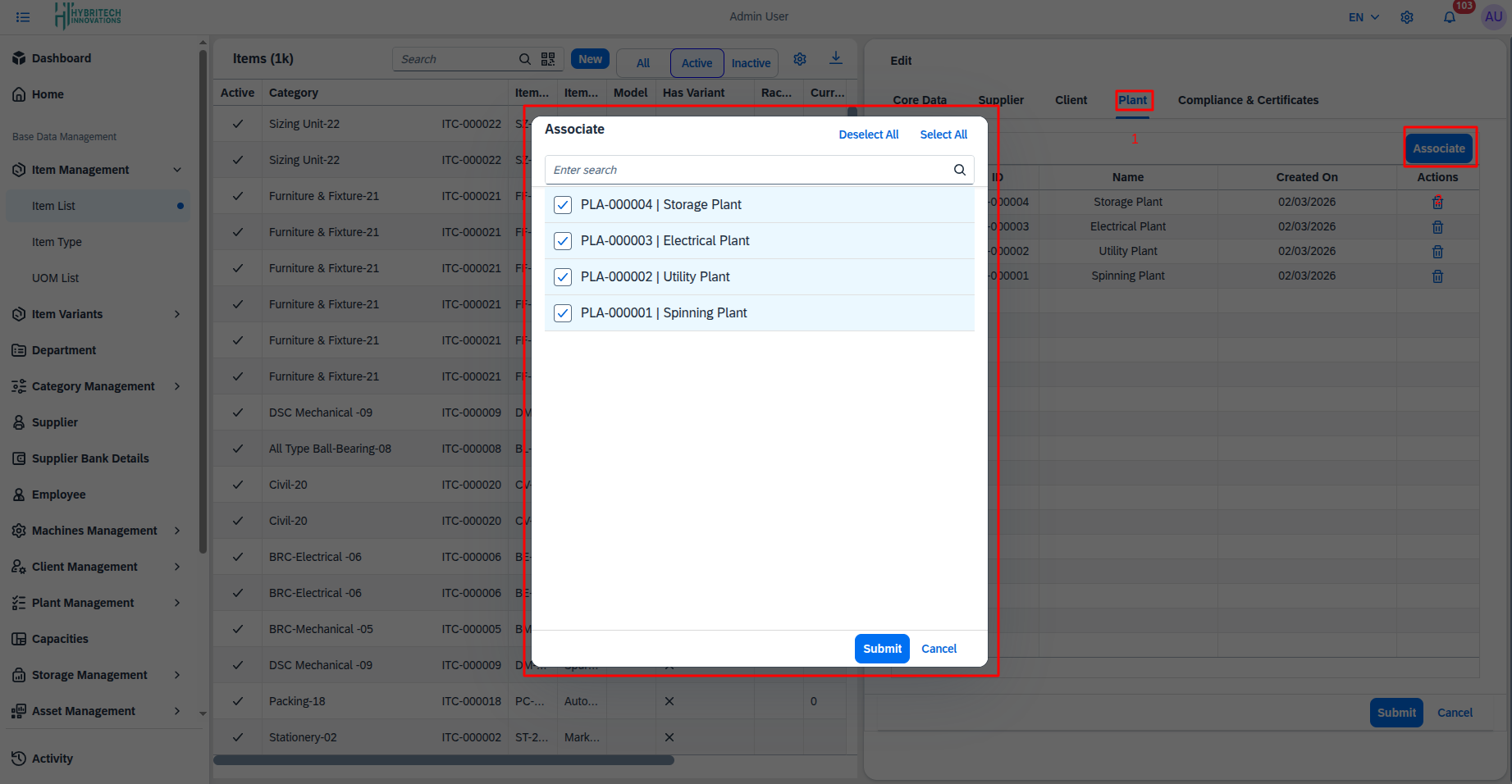
How it Works (Working Steps):
- Add New Plant: This page is used for assigning a new plant to the item from the edit mode.
Client Edit
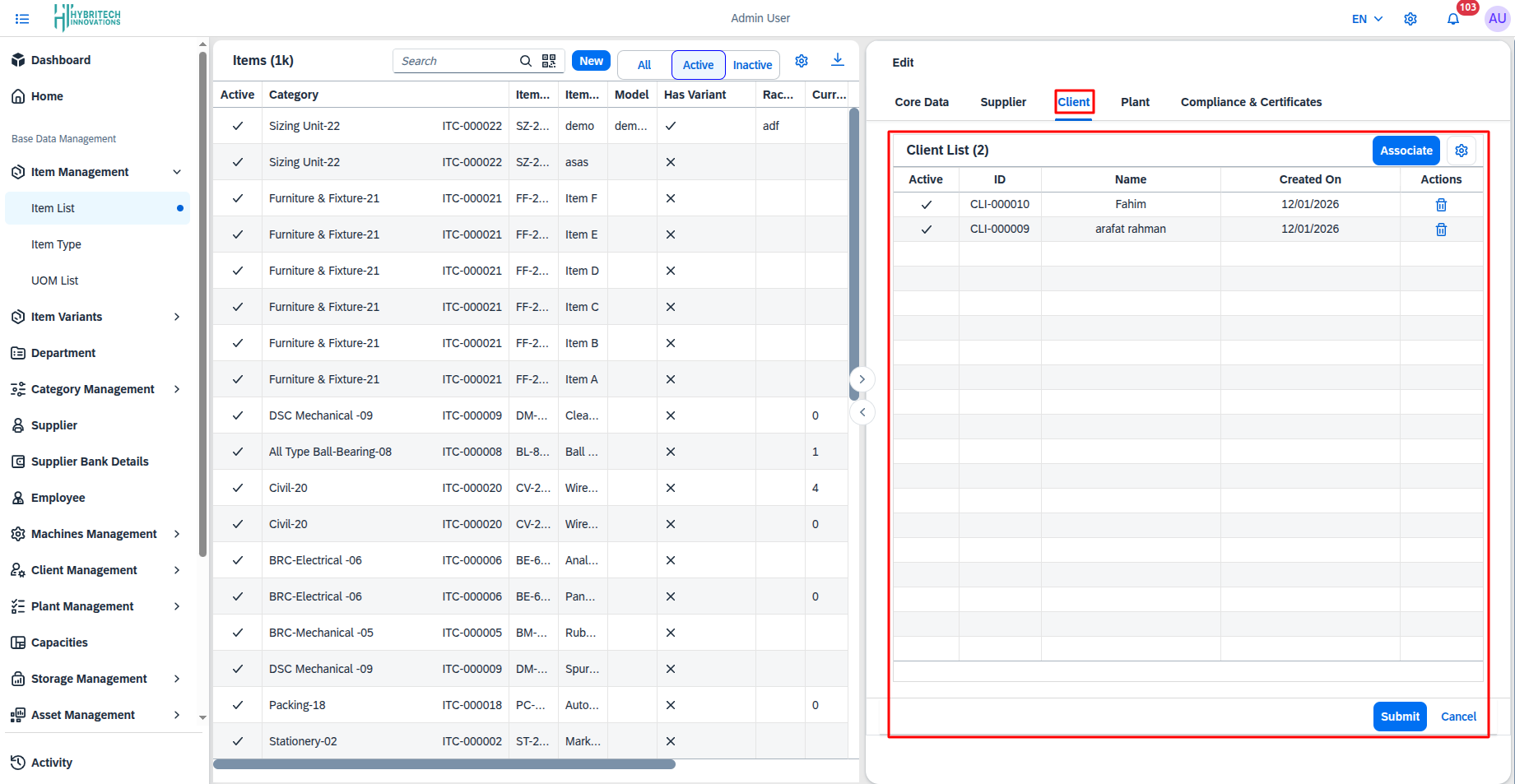
How it Works (Working Steps):
- Update Client Information: This step is used to modify or delete the information of existing clients mapped to the item.
Client Add Edit
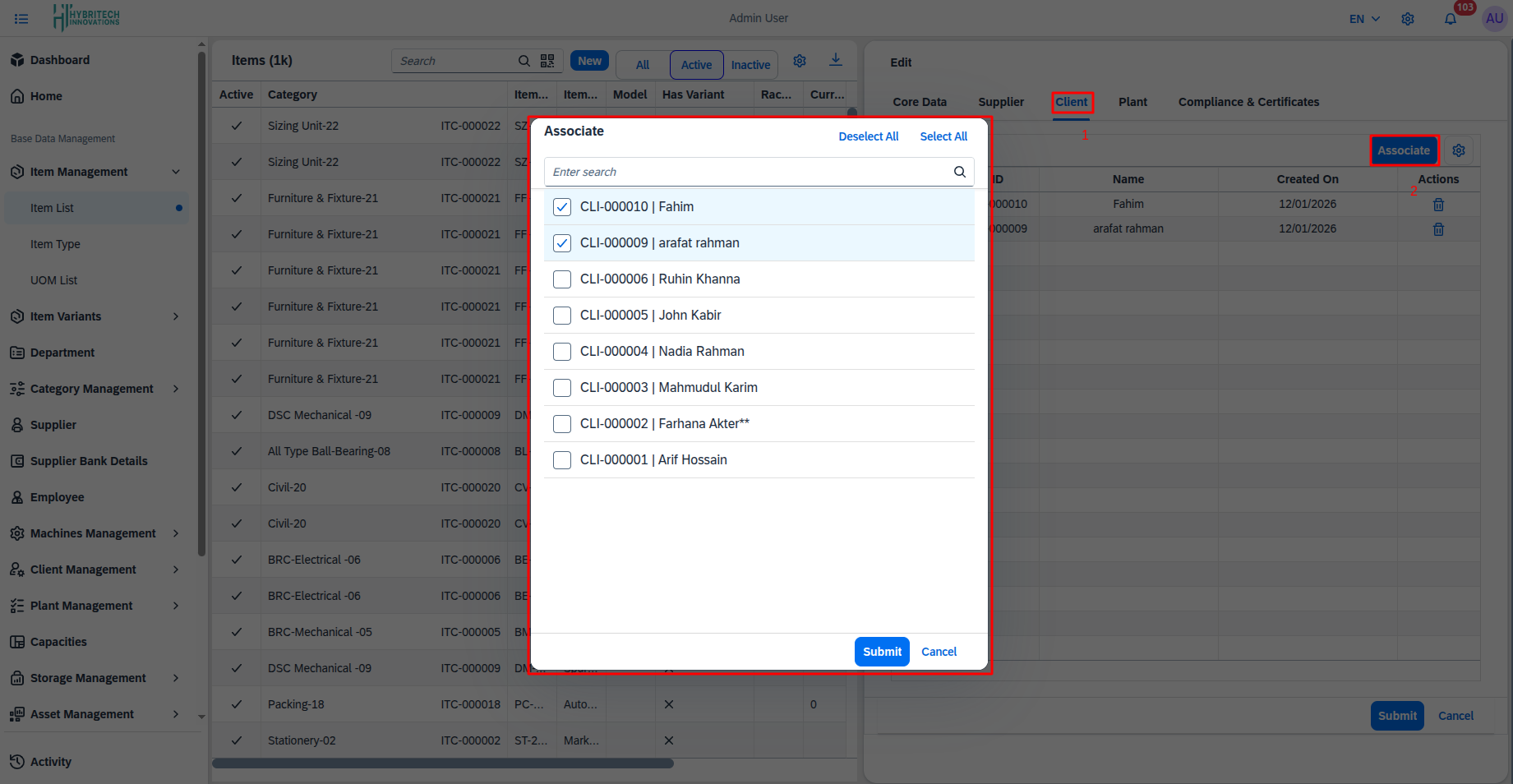
How it Works (Working Steps):
- Add New Client: Used to attach a new client for the item during the editing process.
Compliance Edit
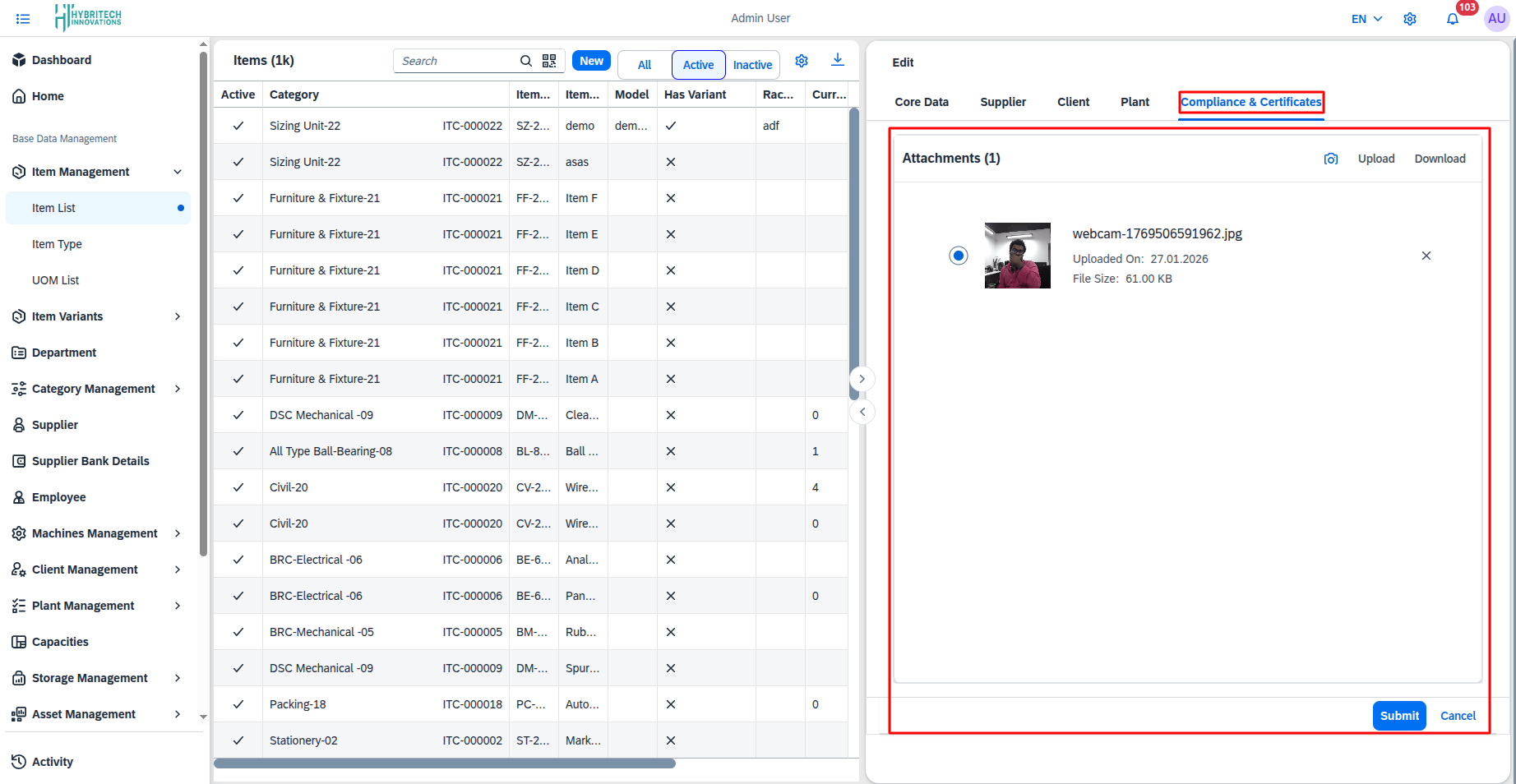
How it Works (Working Steps):
- Update Compliance Data: Any revisions or updates to previously entered compliance certification or data can be edited and saved from here.